
Why Uploading a Vite Project Shows a Blank Page — Publish dist, Not src
A beginner-friendly way to tell source code from browser-ready static output.
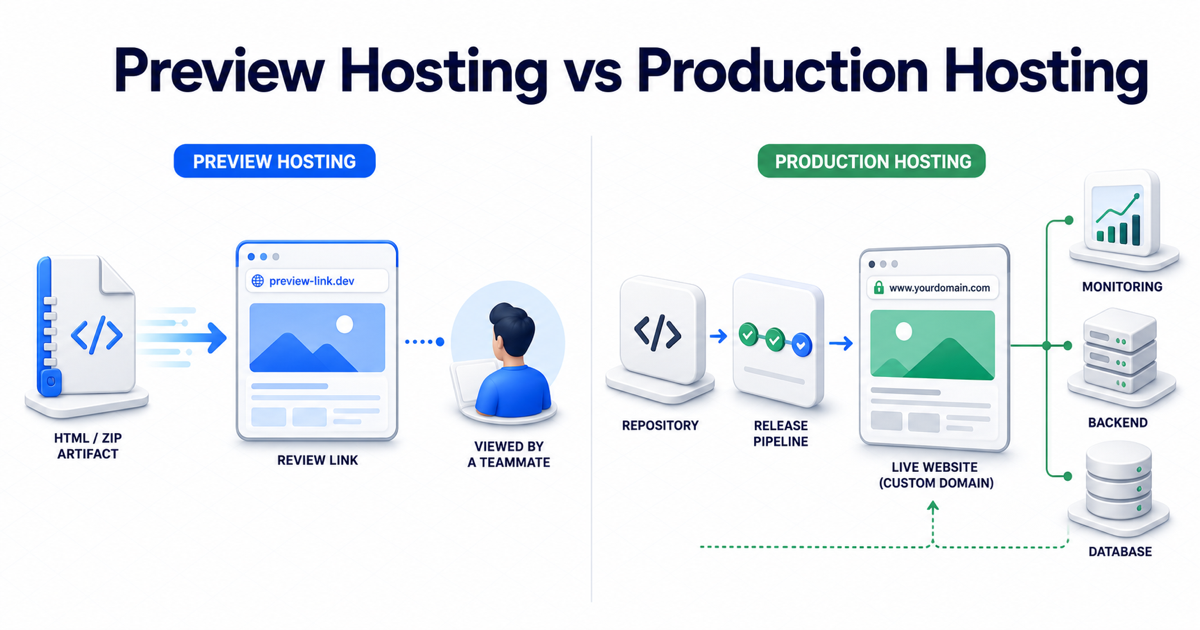
If an AI coding tool generated a Vite or React project, uploading the project folder to a static file host may produce a blank page.
The usual reason is simple: the project folder is source code, while the host needs the browser-ready build output.
This is not unique to one hosting product. It is how modern frontend build tools work.
Source code and build output are different artifacts
A Vite source project often looks like this:
my-app/
├── package.json
├── src/
│   ├── App.jsx
│   └── main.jsx
├── public/
├── index.html
└── vite.config.js
The browser cannot use that folder in the same way your local development server does.
Your development setup may:
- transform JSX or TypeScript
- bundle imported modules
- process CSS
- replace configured environment values
- generate hashed asset files
A static host normally serves files. It does not reproduce your local build environment.
Build the project first
From the project directory, run:
npm install
npm run build
Vite normally writes the result to dist/:
dist/
├── index.html
└── assets/
    ├── index-a1b2c3.js
    └── index-d4e5f6.css
That folder contains the files a browser can request directly.
The official Vite documentation describes dist as the default build output and says it can be deployed to a static hosting service:
https://vite.dev/guide/static-deploy
If your project changes build.outDir, use the configured output instead of assuming the folder is named dist.
Verify before uploading
Run:
npm run preview
Open the local URL printed by Vite. Check the page, then stop the local server.
This step separates two problems:
- If the local preview is broken, fix the application or build configuration.
- If the local preview works but the published page breaks, inspect paths and the uploaded folder.
Publish the output, not the development project
Zip the contents of dist/ so that index.html is at the root of the uploaded artifact.
Good:
upload.zip
├── index.html
└── assets/
Risky extra directory level:
upload.zip
└── my-app/
    └── dist/
        ├── index.html
        └── assets/
The second shape can make a static host look in the wrong root.
I use this upload decision guide when checking the artifact:
The relevant boundary is straightforward: PreviewShip accepts browser-ready static output; it does not build arbitrary source projects on the server.
A five-minute blank-page checklist
1. Confirm the published root
The published root should contain index.html.
2. Inspect asset requests
Open Developer Tools, select Network, and reload the page. Look for 404 responses.
3. Check the configured base path
An application built for a subdirectory may request assets from a different location. Review Vite’s base configuration when paths are wrong.
4. Check filename case
Logo.png and logo.png may appear equivalent on one local machine but become different files on a case-sensitive hosting system.
5. Check application requirements
A static build cannot provide a backend, database, server route, or secret. If the app requires those things, choose an application platform.
What about one plain HTML file?
Do not add a build process when you do not need one.
If the AI tool gave you one self-contained HTML file and it opens correctly in a browser, you can usually publish that file directly.
The build step applies when the project uses a framework or toolchain that must transform source code into static output.
The decision is therefore:
| What you have | What to publish |
|---|---|
| One self-contained HTML file | The HTML file |
| HTML plus local CSS/JS/images | The complete folder or ZIP |
| Vite/React/Vue source | The generated dist/build/out directory |
| Backend, database, server routes | Use an application platform |
Once this distinction is clear, most “my upload is blank” problems become much easier to diagnose.


